
Log in with an OTP code
Works on any Telegram app — phone or desktop. You'll request the code from Telegram and read it on your Telekuy order page.
- 1
Copy the phone number
Open the account in your orders and copy its phone number.
- 2
Start logging in on Telegram
Open the Telegram app on your device and enter the phone number on the login screen.
- 3
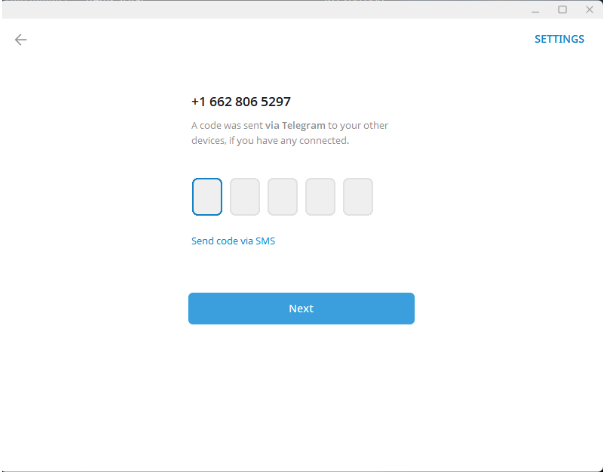
Telegram asks for a code
After you enter the number, Telegram asks for a verification code (OTP).
- 4
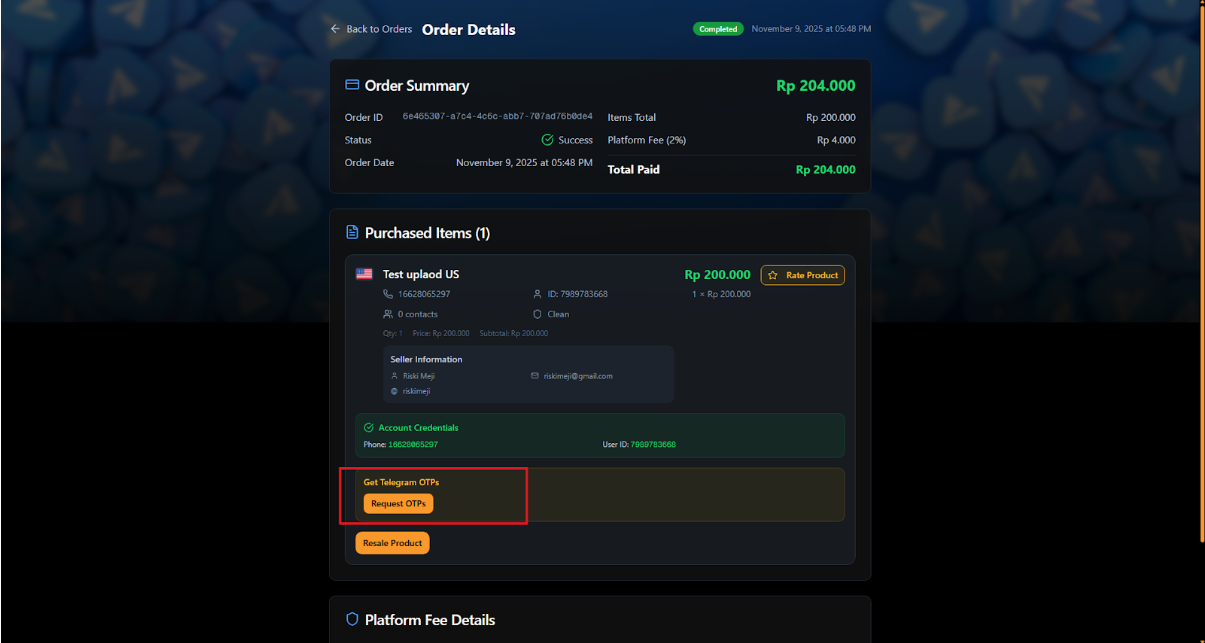
Request the code on Telekuy
Back on the order page, click Request OTPs, then Get Telegram OTPs to show the incoming code.
- 5
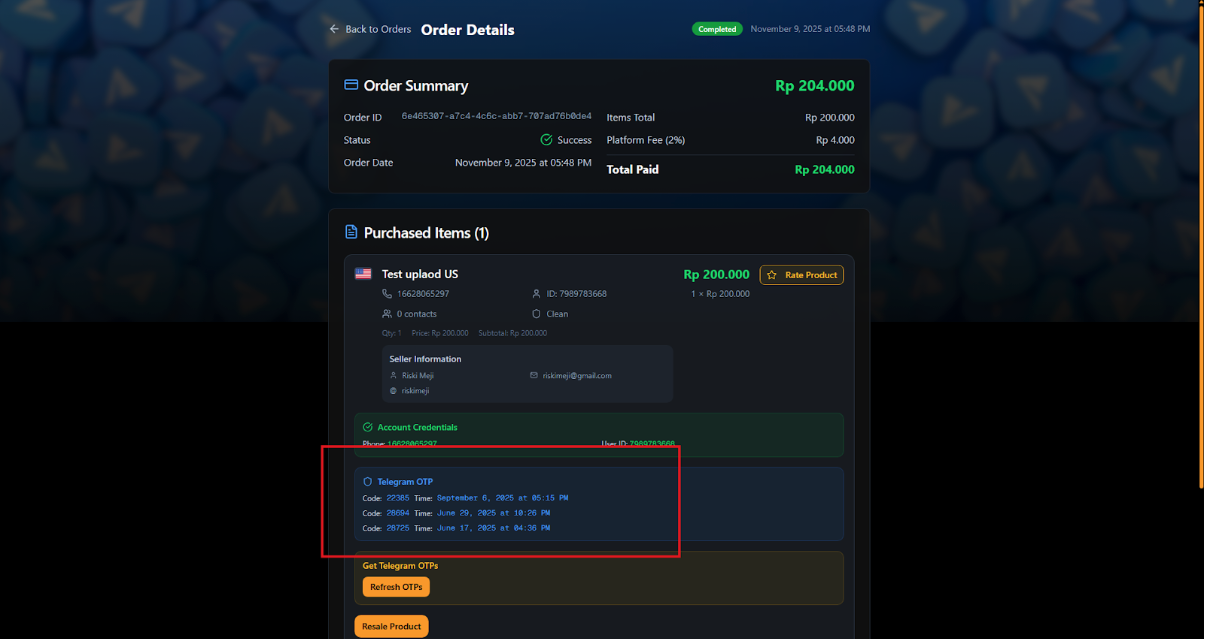
Use the newest code
The newest code is always at the top. Check the date and time to make sure it's the latest one.
- 6
Enter the code in Telegram
Type the code into Telegram to finish logging in.
No code arriving?
If Telegram doesn't send a code after you request it, log in with Telegram Desktop (TData) instead.